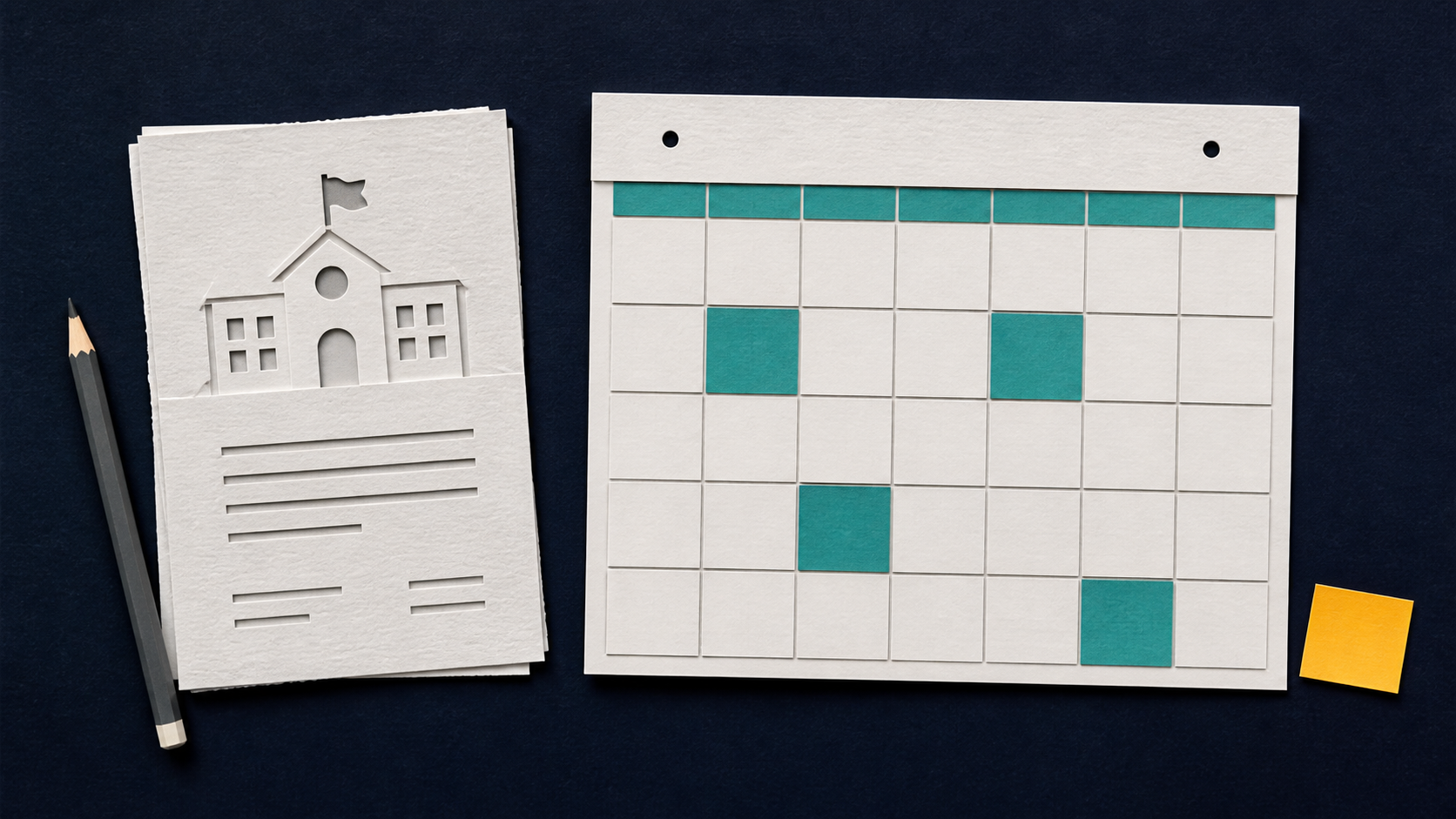
Ask AI to pull dates from a school PDF into a table you can check. Once the entries match the notice, add the confirmed dates to your household calendar. A parents’ evening marked “week commencing” still needs an actual day and time.
First check whether the school already offers a maintained calendar subscription covering your child’s dates. That may save you making a second copy to keep up to date.
The school notice and review below are made up. Google’s optional import instructions were checked on 8 September 2026.
Extract the dates with their source wording
Upload the original PDF to an AI tool that accepts it, or paste its text. Prefer a public notice. Remove children’s names, contact details and private appointment information that the task does not need. For scanned pages, check whether the tool can read the images; columns and footnotes can be missed.
Extract every school calendar entry from the supplied PDF or text, including tentative and incomplete entries.

Use a table with: row ID; event; exact source wording and page or section; date or range; time; issue to resolve.

Do not guess missing years, dates or times. Use a school-year heading only when it clearly resolves the year, and cite it. Add YYYY-MM-DD dates only when unambiguous. Flag weekday/date mismatches without silently fixing them.

Preserve date-range boundaries. Keep early finishes separate from all-day closures. Keep week-commencing and TBC entries unresolved; do not turn a week into one appointment. Flag duplicates or conflicting entries rather than choosing silently.

After the table, list any relevant lines you could not read or excluded, with reasons. Do not create calendar events or files. I will check the rows first.
Example: six entries, two needing clarification
Fictional notice: Ashford Vale Community School, term dates 2026/27.
Staff INSET: Tuesday 1 September 2026. Pupils return: Wednesday 2 September 2026. Early finish: Friday 16 October 2026 at 1pm. Half-term: Monday 26 October to Friday 30 October 2026. Parents’ evening: week commencing Monday 9 November 2026, exact evenings TBC. Christmas holiday begins: Friday 18 December 2026 after school.
The six review decisions
- R1, INSET (staff training): 1 September 2026. An all-day closure is suitable once you confirm it applies to your child.
- R2, pupils return: 2 September 2026. The date is clear; the start time is absent. Use a date reminder, without inventing an opening time.
- R3, early finish: 16 October 2026 at 13:00. Use a timed pickup reminder. The notice gives no duration; choose one yourself if the calendar requires it.
- R4, half-term: 26–30 October 2026 inclusive. The calendar entry must cover all five days and stop before 31 October.
- R5, parents’ evening: week commencing 9 November 2026. Hold the appointment entry until the school supplies the actual evening and time.
- R6, Christmas holiday begins: 18 December 2026 after school. Hold a timed entry or full holiday span until you know the finish time and return date. You can choose a date-only note.
Check the notice, then add the confirmed entries
Compare every row with the PDF, including headings and footnotes. Confirm the school, year group and academic year. Mark each row Approve, Hold or Reject. Keep the unresolved rows in a short list for the next school message.
For a few dates, enter the approved rows yourself. Choose the calendar and account before you begin. Use the correct local time zone, Europe/London for UK school times, and set any reminders you want. Do not turn an early finish into an all-day closure.
For a longer list: import a calendar file
An ICS file is a calendar file. For a long list, ask your AI tool to create one using only the rows you approved, with the all-day or timed treatment you chose. Check its event list before importing, and keep unresolved rows out.
Google Calendar on a computer supports ICS import: open Settings > Import & Export, select the file and choose the destination calendar before importing. The primary calendar is the default. Google’s import instructions.
For another calendar app, check its current import instructions. Avoid setting up a new connector just to add a handful of dates. Before a bulk import, use a temporary calendar if your app allows it, and check for existing entries to avoid duplicates.
Open the calendar and check the result
Compare each new event with the approved row: date, time, all-day setting, range and reminder. Check the event count too. In the example, half-term must display across 26–30 October; the parents’ evening must remain unresolved.
An imported file will not keep up with later school corrections. Keep the notice and update the affected entries when a new message arrives. Store the unresolved list somewhere you will see it, so a missing appointment does not quietly become a forgotten one.