Connect a second Google account to ChatGPT without mixing work and home
Supported paid ChatGPT plans can now connect more than one Gmail, Calendar or Contacts account. Run this checklist before you approve the second login.
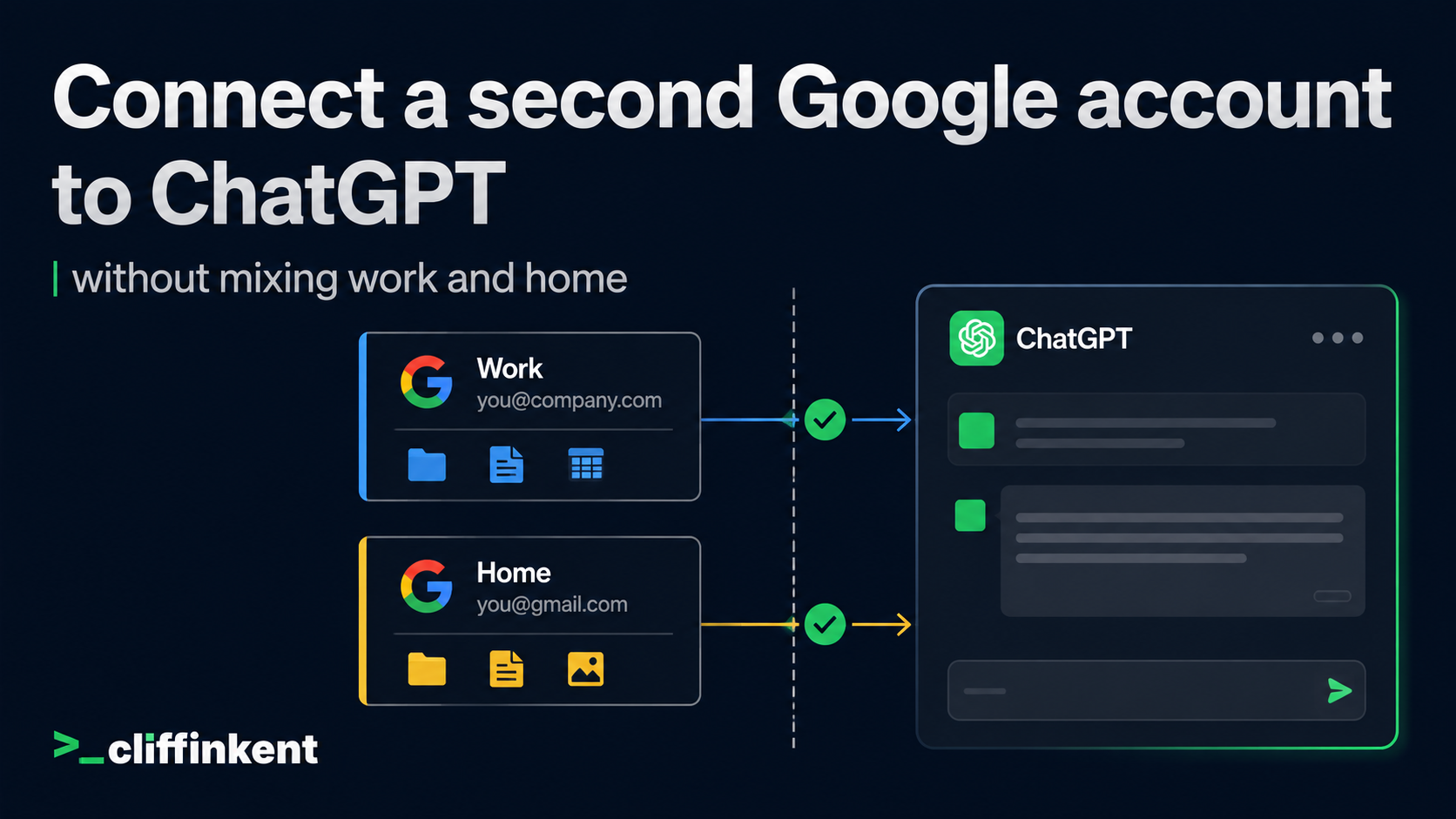
Decide which Google account is work before you connect a second one to ChatGPT, then read the permission screen. OpenAI’s 28 August 2026 release notes now let supported Plus, Pro, Business and Enterprise plans attach more than one Gmail, Calendar or Contacts account to the same conversation. That is handy for checking two calendars. It is also how a personal inbox and a work inbox end up in one Memory pile.
This Guide is a pre-connect checklist: which account, which apps, which scopes, who must approve, and what happens to Memory when you disconnect. The path, permission wording and Memory rules below follow OpenAI’s help pages, checked on 31 August 2026.
Who this is for
Use this if you already use ChatGPT at work and a personal Gmail or Calendar sits on the same login, or you are about to add one. You want a method, not a product score.
Skip it if you are on Free or Go. Those plans are not in OpenAI’s multi-account availability line. Skip it if your workspace has not enabled the Google apps, or if a Google Workspace admin has not approved the scopes. Plan, region, account, surface and workspace all have to line up first.
What changed on 28 August 2026
OpenAI says you can bring personal and work accounts into the same conversation: check calendars together, or find emails across connected inboxes, globally on web, desktop, iOS and Android for those paid plans. That is the point of the feature. It is also the risk. ChatGPT will do what you asked. If both accounts are connected and Memory is on, eligible Google data can personalise later answers.
A separate 8 June 2026 note on the same page covers send-from-chat. With Gmail or Outlook connected, ChatGPT can create a draft and you can choose to send it without leaving ChatGPT, on the web, for Plus, Pro, Business and Enterprise. Treat send as a permission you are granting.
Decide the account first
Write this down before you click Connect.
Connecting a personal account does not give ChatGPT mail or files that only exist on the work account. The reverse is also true. The mess starts when both sit on the same ChatGPT user and you ask a vague question.
- Which Google account is work, and which is personal.
- Which apps this ChatGPT login actually needs: Gmail, Calendar, Contacts, Drive. Connecting fewer Google apps is a documented option.
- Whether this ChatGPT login is a personal Plus or Pro account, or a Business or Enterprise workspace.
- Who can block you: a ChatGPT workspace admin, a Google Workspace admin, or both.
Open the connection screen
OpenAI’s connecting-apps article says to open Settings, then select Apps or Plugins, depending on which option is available. Select the relevant plugin or app. If Connected accounts appears, review an account or select Connect another account when available. Otherwise use the Connection section shown for the app. Sign in and complete any requested authorisation.
That path is vendor-documented. Labels move. If you see Plugins rather than Apps, use Plugins. Pick the account that already has the mail or calendar you need, then stop at the Google permission screen before you approve anything.
Read the permission screen
The provider screen lists the services and permissions for the selected account. OpenAI’s Google data-controls FAQ publishes the OAuth scopes ChatGPT can request. Watch the write-capable ones. Gmail is listed as https://www.googleapis.com/auth/gmail.modify. Google Calendar is listed as https://www.googleapis.com/auth/calendar.events. Google Drive includes https://www.googleapis.com/auth/drive for actions that create, update, share, move, upload, copy or delete Drive-family files, plus readonly Drive scopes. Contacts are listed as contacts.readonly and contacts.other.readonly. Calendar can also request meetings.space.readonly for Meet space lookup.
If you see All permissions are required, OpenAI says select Reconnect and approve every permission required for the apps you selected. If you see ChatGPT needs all requested permissions when connecting Google apps, select Try again, then Select all on Google’s screen. To connect fewer Google apps, select Select fewer apps in ChatGPT, then still approve every requested permission for the apps you kept.
Do not assume a read-only job. gmail.modify and calendar.events are write-capable. If you only wanted ChatGPT to search mail, you are still being asked for modify.
Who has to approve
Two admins can say no, and they are not the same person. A ChatGPT workspace admin can enable or disable Google app actions. A Google Workspace admin can trust the ChatGPT/OpenAI app or approve the OAuth scopes those actions need.
If a required scope is not approved, users may see an authorisation, admin approval or permission error when connecting, reconnecting or using the action. Some Google OAuth flows fail before ChatGPT can tell you which scope was blocked. Existing connections are not removed when new scopes appear, but a newly enabled action may need a reconnect.
If you hit that wall, stop. Ask the Google Workspace admin whether the ChatGPT/OpenAI app is trusted for the scopes above, or ask the ChatGPT admin to disable the action you do not need. Then retry only after that is settled.
Set Memory and suggested prompts before you use both inboxes
OpenAI says that if Memory is enabled, eligible information from a connected Google app may help personalise ChatGPT. Suggested prompts can also draw on that data. Disconnecting the app does not automatically delete existing chats, the Memory summary or other saved memories.
Before you run a mixed-inbox prompt, go to Settings > Personalisation. Decide whether Memory should stay on for this login. Turn off Suggested prompts if the setting appears and you do not want Google-derived suggestions. If you already connected the work account and you are adding a personal one, review saved memories for anything you would not want mixed into a later chat.
Then be specific in the conversation. OpenAI says that when an app uses the wrong account, review the connected accounts and, when supported, specify the account you want in your request.
Disconnect without assuming Memory is gone
OpenAI documents this path: open Settings, then Apps or Plugins; select the relevant plugin or app; if Connected accounts appears, open the account’s more options menu, otherwise use Connection or the plugin’s more options menu; select Disconnect.
Disconnecting stops future access through that account. Other connected accounts can remain. Disconnecting the last account can remove some associated plugins. Uninstalling a plugin can disconnect all accounts connected through it. It does not delete original Gmail, Calendar or Drive data, and it does not wipe ChatGPT conversations that already used the app. Review Memory and those chats separately if the work inbox should not keep teaching the personal one.
A checklist you can run this week
Use this in order.
- Confirm you are on a supported Plus, Pro, Business or Enterprise plan, in a region and workspace where the Google apps are available.
- Name the work Google account and the personal one. Do not connect the second until that is written down.
- Choose the apps you need. Prefer Select fewer apps over a full Google bundle.
- Open Settings, then Apps or Plugins, and use Connect another account only after you know which login you are about to grant.
- On the Google screen, look for gmail.modify, calendar.events and drive. If you do not want write access, do not approve the connection until an admin can disable those actions.
- If you see an admin approval error, treat it as a blocked scope, not a broken laptop.
- Set Memory and Suggested prompts before you ask ChatGPT to look across both inboxes.
- After connecting, specify the account in the prompt. Do not ask a vague check-my-email question with two Gmail accounts attached.
- When you no longer need the second account, disconnect it, then check Memory and old chats.
Limits to keep in view
Availability still depends on plan, region, account, surface and workspace. Free and Go are not listed for multi-account Google connections. Google Workspace admins can block scopes. ChatGPT workspace admins can disable actions.
This is a different job from Ask Gemini in Google Chat history. That piece is about conversation history in a Google product, not a second Gmail account in ChatGPT.
Sources
ChatGPT release notes, 28 August 2026 multi-account line and the 8 June 2026 send-from-chat note.
Google app data controls FAQ, including OAuth scopes, Memory, suggested prompts and admin approval failures.
Connecting and managing app accounts in ChatGPT. Checked 31 August 2026.